Reminders by text, from the day you sign up
Add your cell phone when you make your account and we text you before renewals and due dates, after a quick code check.
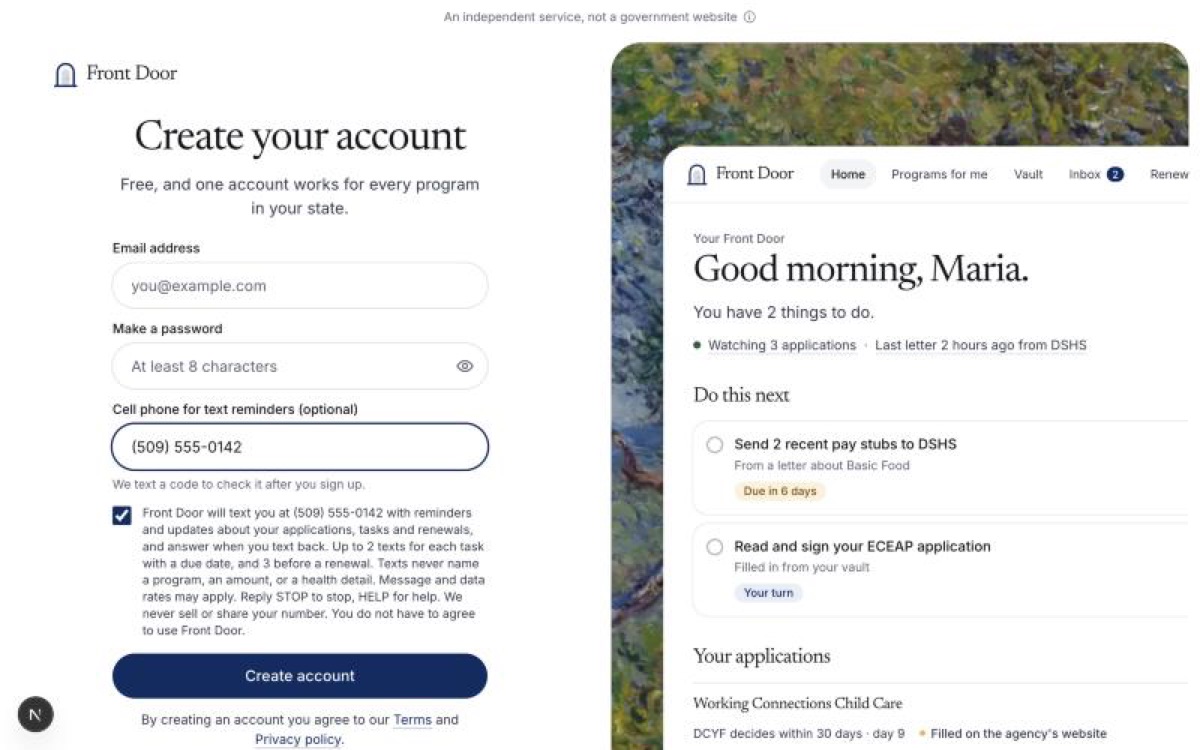
Front Door already emails you before each renewal. Texts are now ready too, and you can ask for them when you make your account.
- Ask for texts at sign-up. When you create your account there is a box for your cell phone. It is optional. Next to it are the exact words you agree to, with the switch already on. Leave the box empty if you do not want texts.
- We check the number first. After you sign in, we text a 6-digit code to that number. Texts start only when you type the code back. Until then, the code is the only text we send.
- Or later. If you skip it, the last step of the welcome asks once more, and you can turn texts on or off any time under Reminders on your home page. Renewal emails stay on unless you turn them off.
- What a text says. That you have a task or a renewal coming up, the date, and a link. Never the program, an amount, or a health detail. Reply STOP to stop and HELP for help.
- The renewal line changes with texting. The front page and your home page say “We text and email you before your renewal” only while texts can really go out. If texting pauses, they go back to “We email you before your renewal” on their own.
- Sent through a sponsor’s number for now. Until Front Door has its own registered text number, our texts go out through a number Joe Coffee lends us.
Make your account at localcarehub.org/signin, or turn texts on under Reminders at localcarehub.org/me.